Credentials
EnterpriseBacula Enterprise Only
This solution is only available for Bacula Enterprise. For subscription inquiries, please reach out to sales@baculasystems.com.
Important
In order to access and backup the Hyper-V server, the delegation of the User credentials must be enabled and the Bacula File Daemon must be logged as an authorized user within the Hyper-V server.
Enable Credential Delegation
Run gpedit.msc (normally in C:\Windows\System32) on the Hyper-V server and look at the following policy: Computer Configuration -> Administrative Templates -> System -> Credentials Delegation -> Allow Delegating Fresh Credentials.
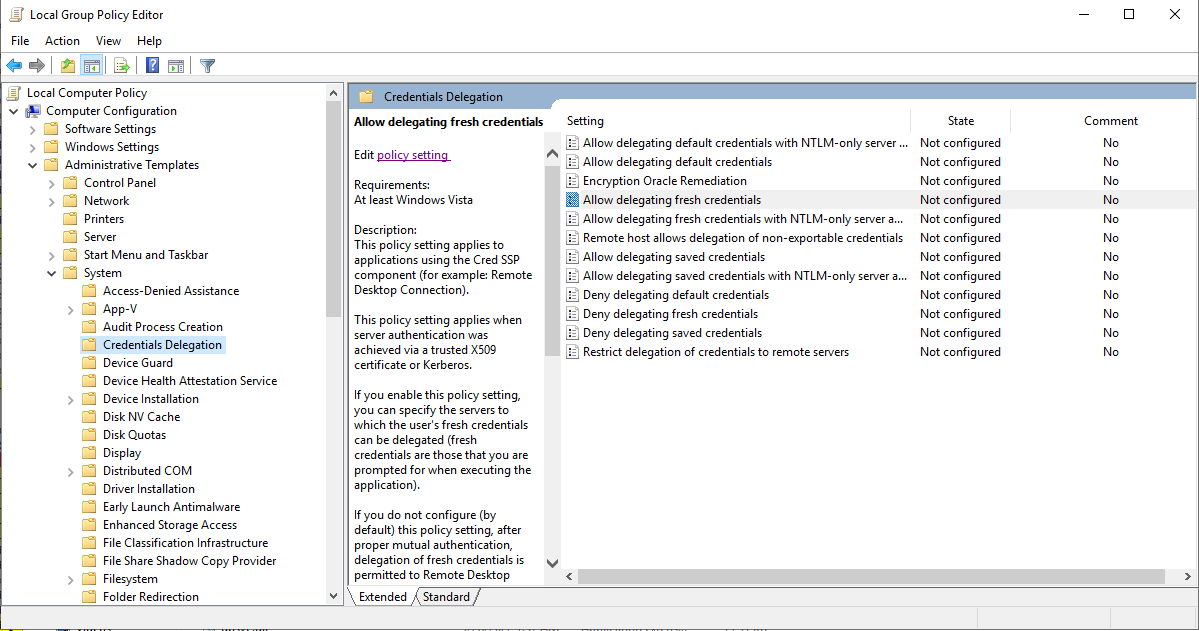
Verify that it is enabled and configured with the WSMAN SPN appropriate for the target computer.
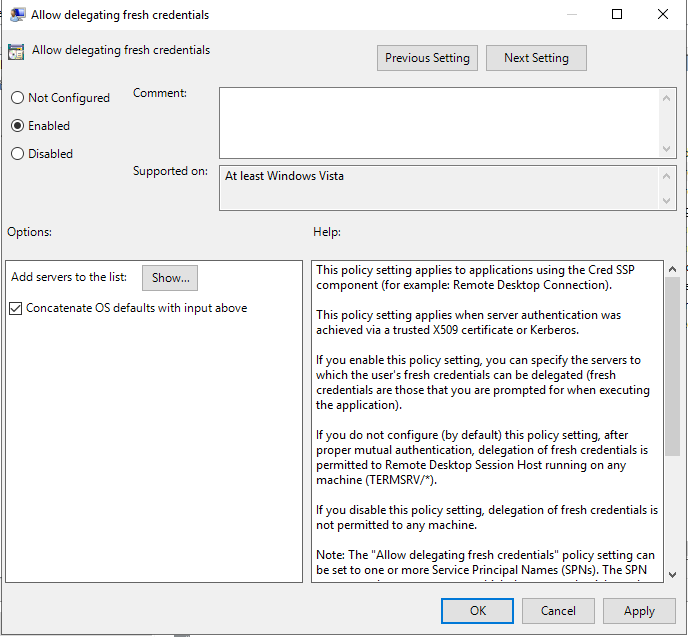
For example, for a target computer name “myserver.domain.com”, the SPN can be one of the following: WSMAN//myserver.domain.com or WSMAN//*.domain.com. Introduce it in the “Add servers to the list” “Show” dialog box.
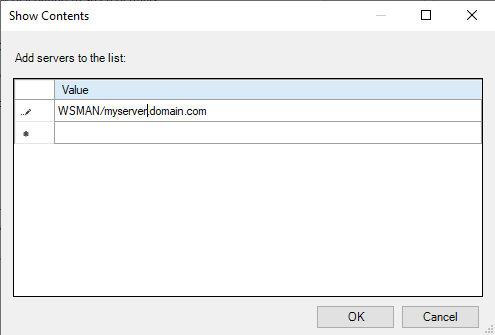
Finally run a powershell console on the Hyper-V server (normally in C:\Windows\Systeme32\WindowsPowerShellv1.0powershell.exe) and enter the following commands:
Enable-WSManCredSSP -Role Server -Force
Enable-WSManCredSSP -Role "Client" -DelegateComputer myserver.domain.com -Force
Configure Plugin Impersonation
The impersonation of the Hyper-V WinAPI Plugin can be achieved in different ways.
Specify the user name and password locally on the hyper-v node. This is the recommended method. In a
bacula-hyperv.pwdfile, located by thebacula-fd.confconfig file (typically C:\Program Files\Bacula).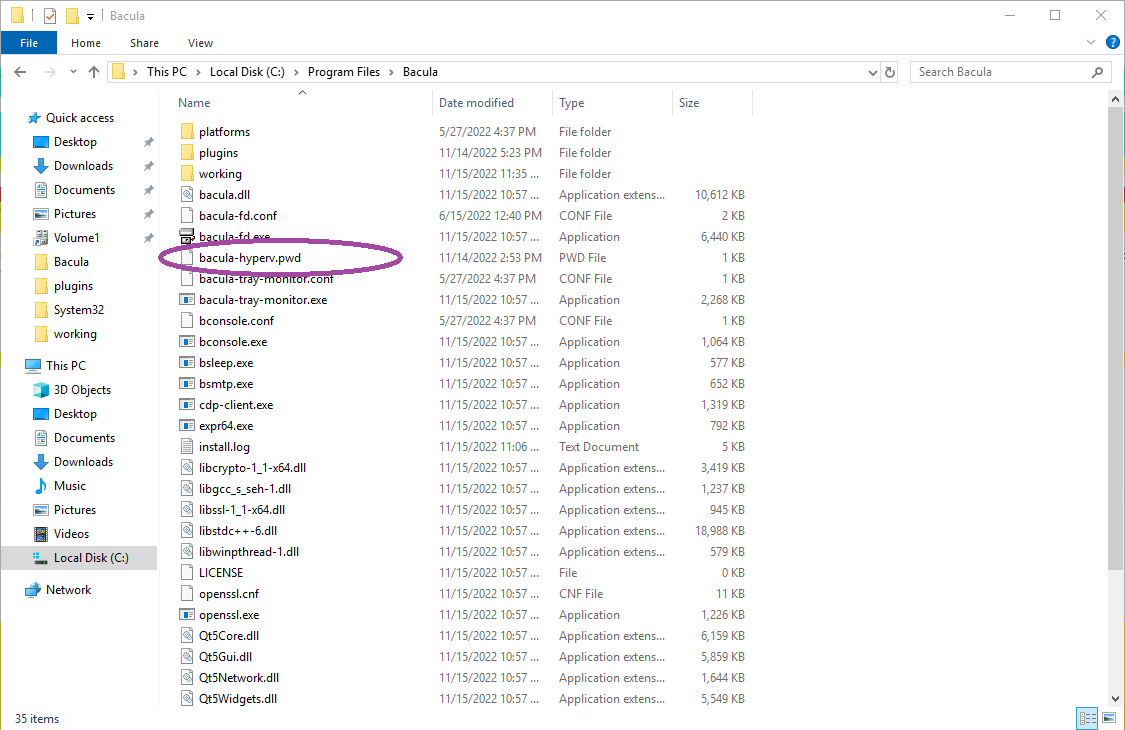
bacula-hyperv.pwdcontains the user name followed by the user password, separated by a colon.name@domain.com:mypassword
or
DOMAIN\name:mypassword
Impersonate the Hyper-V WinAPI Plugin by passing user and password, as plugin options. See Job configuration
user_nameanduser_passwordoptions.Manually change the Bacula File Daemon default login account:
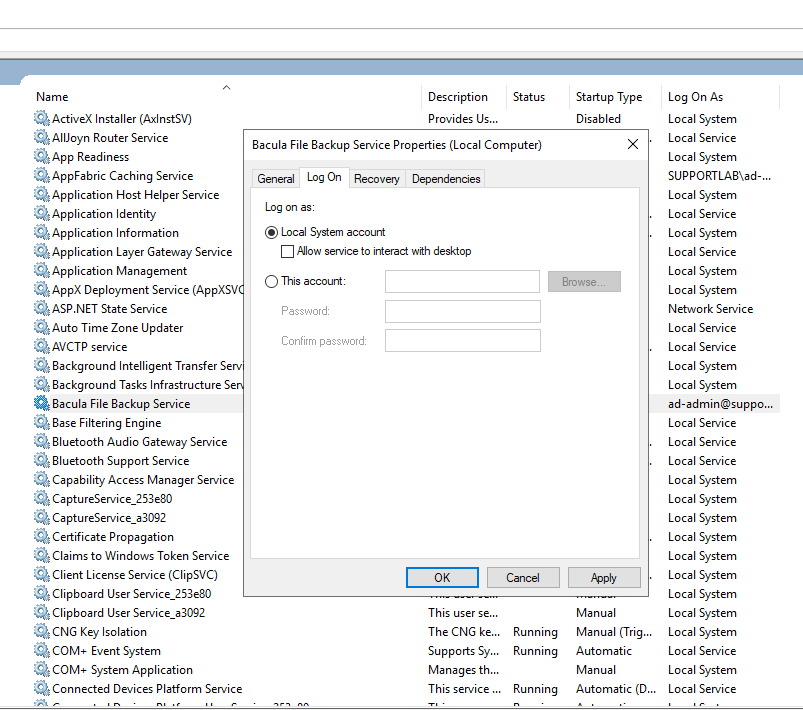
Access the Hyper-V server using administrative credentials. Go to the Windows Start menu, type in “Services”, and press Enter to display a list of all installed services. Locate the Bacula File Backup Service, right-click on it, and select Properties. Then, navigate to the Log On tab. The settings should appear as follows:
Toggle the selection from “Local System account” to “This account”. Enter the credentials of a Hyper-V administrator (either read only or read-write). Click OK.
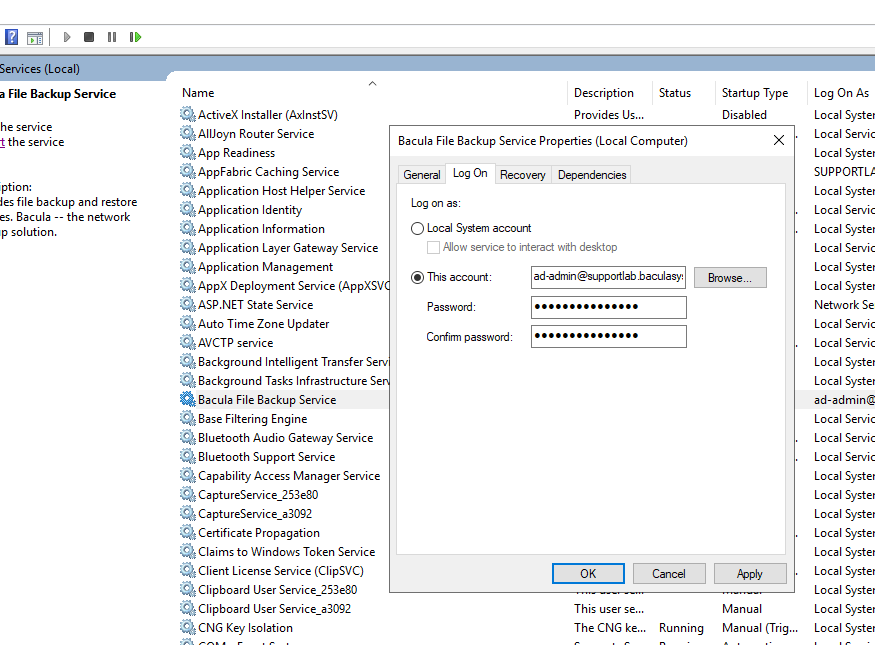
Click on the Bacula File Backup Service entry once more with the right mouse button, then select “Restart” to ensure that the changes take effect.
Go back to: HyperV WinAPI: Installation.