Restore
EnterpriseBacula Enterprise Only
This solution is only available for Bacula Enterprise. For subscription inquiries, please reach out to sales@baculasystems.com.
To ensure a successful restore, it is advisable to either choose the entire fileset or restore all files associated with a particular drive, rather than cherry-picking individual files from the backup.
Restore Parameters
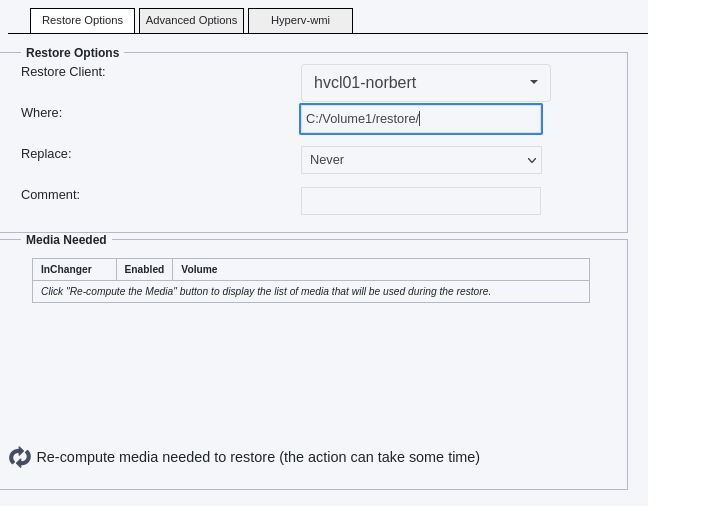
Where: Can specify a path for VM restoration. If the content is not a path (does not contain slashes or backslashes), it’s considered to be the new VM restore name.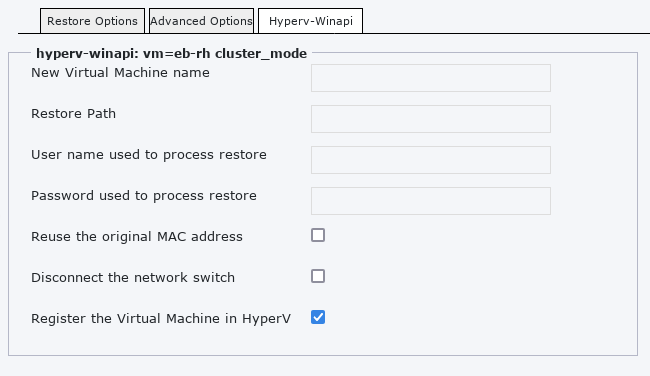
New Virtual Machine Name: For renaming the restored VM.Restore Path: Specify the location where Snapshot files are restored.Name used to process restore: impersonation user name (see Impersonation of the Hyper-V Winapi Plugin).Password used to process restore: impersonation user password (see Impersonation of the Hyper-V Winapi Plugin).Reuse the original Mac address: Generate a new Mac address or not. Having duplicate Mac addresses on the network is not recommended.Disconnect the network switch: Reconnect the network adapter to the network switch at restore time, or choose not to.Register the Virtual Machine in HyperV: Decide whether to register the restored Virtual Machine in HyperV. It can be used to access only the settings and the raw disks.
Restore Destination
VM Renaming
If the ‘New Virtual Machine Name’ is specified, the restored VM(s) will be renamed accordingly. In case the ‘Where’ is not a path value, the ‘Where’ value will be used for renaming the restored VMs. If neither is set, the restored VM(s) will retain their original name(s), with the restore job name in parenthesis. For instance, a VM named ‘tiny-vm’ restored by Job ‘RestoreFiles.2023-10-18_14.39.28_32’ will be named ‘tiny-vm (from RestoreFiles.2023-10-18_14.39.28_32)’ by default.
Restore Path
If the ‘Restore Path’ is specified, it will be utilized as the restore path for all backup files related to the drive. However, if the ‘Restore Path’ is empty and the ‘Where’ path is set with a value, then the ‘Where’ path will be used instead. In the event that neither of the aforementioned conditions are met, the default locations on the hyper-v host will be used, without creating a specific folder named after the Bacula job name. It is important to note that during the restore process, the restore files will not be moved, therefore the Restore Path will serve as the location for the restored VM. In order to facilitate multiple restorations, the files will be restored in a designated folder named after the Bacula job name.
Boot Order
The original boot order is restored automatically for generation 1 and 2 VMs. For generation 2 VMs, UEFI boot devices will not be visible in the Firmware list before the new VM is booted once.
Restore Scenarios
Defaults:
Where: EmptyNew Virtual Machine Name: EmptyRestore Path: Empty
The restored VM(s) are (re)created in the local Hyper-V host default VMs location, with original name followed by something like (from RestoreFiles.<date>_<time>).
Quick Rename:
Where: newVMNameNew Virtual Machine Name: EmptyRestore Path: Empty
The restored VM(s) are (re)created in the local Hyper-V host default VMs location and renamed newVMName.
Large Restore:
Where: EmptyNew Virtual Machine Name: NewVMNameRestore Path: C:\LargeStorage\restore
The restored VM(s) are (re)created and renamed NewVMName. Virtual drive(s) and VM files are located into a folder named after the JobName in C:\LargeStorage\restore. Something like : C:\LargeStorage\restore\RestoreFiles.<date>_<time>.
Typical Restore Output
A typical restore console output will look as follows:
2023-10-18 14:39:30 bp-vsir-bweb102-dir JobId 21365: Start Restore Job RestoreFiles.2023-10-18_14.39.28_32
2023-10-18 14:39:30 bp-vsir-bweb102-dir JobId 21365: Restoring files from JobId(s) 21364
2023-10-18 14:39:30 bp-vsir-bweb102-dir JobId 21365: Connected to Storage "File1" at 10.0.98.5:9103 with TLS
2023-10-18 14:39:30 bp-vsir-bweb102-dir JobId 21365: Using Device "FileChgr1-Dev1" to read.
2023-10-18 14:39:30 bp-vsir-bweb102-dir JobId 21365: Connected to Client "hvcl02-winapi" at 10.0.97.22:9102 with TLS
2023-10-18 14:39:03 hvcl02-winapi JobId 21365: Connected to Storage at 10.0.98.5:9103 with TLS
2023-10-18 14:39:30 bp-vsir-bweb102-sd JobId 21365: Ready to read from volume "Vol-3263" on File device "FileChgr1-Dev1" (/bck/a1).
2023-10-18 14:39:03 hvcl02-winapi JobId 21365: StartRestoreJob: Restoring vm in c:\Volume1\restore\RestoreFiles.2023-10-18_14.39.28_32\
2023-10-18 14:39:30 bp-vsir-bweb102-sd JobId 21365: Forward spacing Volume "Vol-3263" to addr=3877321766
2023-10-18 14:39:47 bp-vsir-bweb102-sd JobId 21365: End of Volume "Vol-3263" at addr=5368645668 on device "FileChgr1-Dev1" (/bck/a1).
2023-10-18 14:39:47 bp-vsir-bweb102-sd JobId 21365: Ready to read from volume "Vol-0396" on File device "FileChgr1-Dev1" (/bck/a1).
2023-10-18 14:39:47 bp-vsir-bweb102-sd JobId 21365: Forward spacing Volume "Vol-0396" to addr=271
2023-10-18 14:39:56 bp-vsir-bweb102-sd JobId 21365: End of Volume "Vol-0396" at addr=1732770639 on device "FileChgr1-Dev1" (/bck/a1).
2023-10-18 14:39:56 bp-vsir-bweb102-sd JobId 21365: Elapsed time=00:00:26, Transfer rate=123.8 M Bytes/second
2023-10-18 14:40:06 bp-vsir-bweb102-dir JobId 21365: Bacula Enterprise bp-vsir-bweb102-dir 16.0.7 (11Jul23):
  Build OS:               x86_64-redhat-linux-gnu-bacula-enterprise redhat (Core)
  JobId:                  21365
  Job:                    RestoreFiles.2023-10-18_14.39.28_32
  Restore Client:         "hvcl02-winapi" 16.0.7 (05Oct23) Windows Server 2019 Standard ServerStandard (build 17763), 64-bit,Cross-compile,Win64
  Where:                  c:\Volume1\restore\
  Replace:                Never
  Start time:             18-Oct-2023 14:39:30
  End time:               18-Oct-2023 14:40:06
  Elapsed time:           36 secs
  Files Expected:         5
  Files Restored:         5
  Bytes Restored:         3,221,302,956 (3.221 GB)
  Rate:                   89480.6 KB/s
  FD Errors:              0
  FD termination status:  OK
  SD termination status:  OK
  Termination:            Restore OK
Go back to: HyperV WinAPI: Operations.