Best Practices
CommunityEnterpriseCompression in Bacula
Hardware and software data compression and communication line compression between daemons can be used independently from each other.
Hardware Compression
Hardware compression by tape drives is not directly configured through Bacula configuration files. Instead, it can be enabled or disabled with your tape drive, library, or the operating system following the vendor’s instructions.
The default for most tape drives is to have compression enabled. It is strongly advised to keep this default value enabled, as hardware compression is usually faster and more efficient than software compression.
Bacula’s software compression is configured in Fileset Include Options, can be controlled in a finely granular manner, and is independent from hardware compression. Combining both is usually not a good choice. When software compression is configured for some data, but needs to be disabled for backups going to particular storage, such as tape, the directive AllowCompression in the Director’s Storage resources is available.
Communication Line Compression
Regarding “Communication Line Compression”, Bacula Enterprise uses compression
between daemons by default. It is advised to keep it enabled. If for
any reason you need to disable this feature, you can do this by
configuring Comm Compression = no. Refer to the directive
Comm Compression. Note that the directive can be
found in the DIR, the SD,
the FD and
the Console.
The compression algorithms used and the libraries implementing it are well tuned on x86 / AMD64 hardware, but often inefficient on other systems. In particular on RISC CPUs (Sparc or Power, for example) it may be better to disable this function.
Optimal Volume Size
When writing a disk Volume, you might ask: What size should I use for a disk Volume? In general, our answer would be it depends on a lot of factors, but somewhere between 10 Gigabytes and 100 Gigabytes for today’s systems seems reasonable, because 10-100 GB is a compromise between having a lot of Volumes and having Volumes that are very large. The more Volumes you have, the more complicated is the task of record keeping. The larger the Volume size, the more data that may be not recycled because it interleaved with recent records. Also larger Volumes take more time to copy if you ever need to move them.
The advantage of bigger Volumes is that it improves performance during pruning (smaller number of Volumes to prune). The advantage of smaller Volumes is that you waste less disk space by being able to recycle them more often than big Volumes.
Large Volumes present little performance penality during restores, because Bacula is able to seek to the start of each Job (and often within a Job).
Attribute Spooling
Attribute Spooling is enabled by default, including when using disk backup. It improves performance by spooling the file attribute data so that it can be inserted in one big batch at the end of each job. Disabling Attribute Spooling saves space on the Storage Daemon side, but can make individual jobs run much slower. For maximum performance, leave Attribute Spooling enabled.
The default setting can also be specified explicitly in the Job resource:
Job {
  ...
  Spool Attributes = Yes
}
The file attributes are spooled into the working directory on the Storage Daemon and require about 150 bytes per file. A backup consisting of one million files therefore needs approximately 150 MB of space in the working directory. For simultaneous jobs of this size, multiply this estimate by the number of jobs. More generally, ensure that the working directory has enough space for the combined attribute data of all jobs running simultaneously.
Volume Fragmentation
By default, Bacula is able to share a device between multiple concurrent jobs by allowing them to write simultaneously. Simultaneous writes cause the Volume to have interleaved Job blocks as shown in the picture on the left of Impact of Volume Fragmentation. The drawback is that the restore process could be a bit slower, particularly on tape Volumes, because the Storage Daemon will have to read more chunks of data and must seek between each block. For disk storage, the seek time is very rapid so interleaved Job blocks should not cause a noticeable performance degradation.
However, for tape we believe that running from 5 to 10 concurrent Jobs per tape Volume, with data spooling turned on (see: Impact of Volume Fragmentation), is a good compromise, unless you have a restore time objective that is very short.
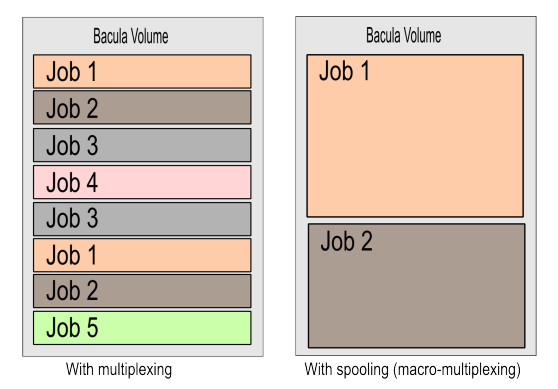
Impact of Volume Fragmentation
Testing Storage Concurrency
Test your disk system to find the best global Maximum Concurrent Jobs for the Storage daemon.
Accurate
Normally, Bacula does not track deleted files nor does it detect files added to a system but with an old date. If you have a requirement to track deleted and/or files added to the system but with old dates, then you should consider using Accurate = yes in your Job definitions. However, it does require more memory on the Client machines.
If do not absolutely require Accurate backups, you might still turn it on once a week if you do only one Full per month as this will keep your backups a bit more in sync with the real state of the filesystem. To do this, we suggest that you add it as an option in your Schedule. Please see the Schedule examples at the end of this article.
Email your Catalog BSR Files
We recommend that you modify the script:
/opt/bacula/scripts/delete_catalog_backup
to email a copy of the BSR file that was written for the Job that does your Catalog backup to yourself or to some safe email address where these BSR files can be stored on another machine. If your Bacula server crashes due to a disk failure or some other catastrophic event, with the BSR files, you will be able to easily recover your catalog database and thus your server configuration.
Mirroring Volumes or Copying to Tape
If possible mirror your volumes to another place over the network, or to copy important volumes to tape.
See also
Previous articles:
Go back to: Backup Policy.