Authorization Method A: Common app model with ‘bacula-m365-plugin’ (DEPRECATED)
EnterpriseBacula Enterprise Only
This solution is only available for Bacula Enterprise. For subscription inquiries, please reach out to sales@baculasystems.com.
Bacula Systems has a registered application in Azure AD named bacula-m365-plugin. This section will show how to authorize it to perform backup and restore operations over your target tenant. All required steps to complete this authorization process are presented below.
Please, use this connection method for testing purposes as it is deprecated. For production systems, go ahead with Authorization method B.
Most of the procedures described in this section must be done by a tenant administrator. A tenant administrator is a user who has been assigned the Azure AD role Global administrator.
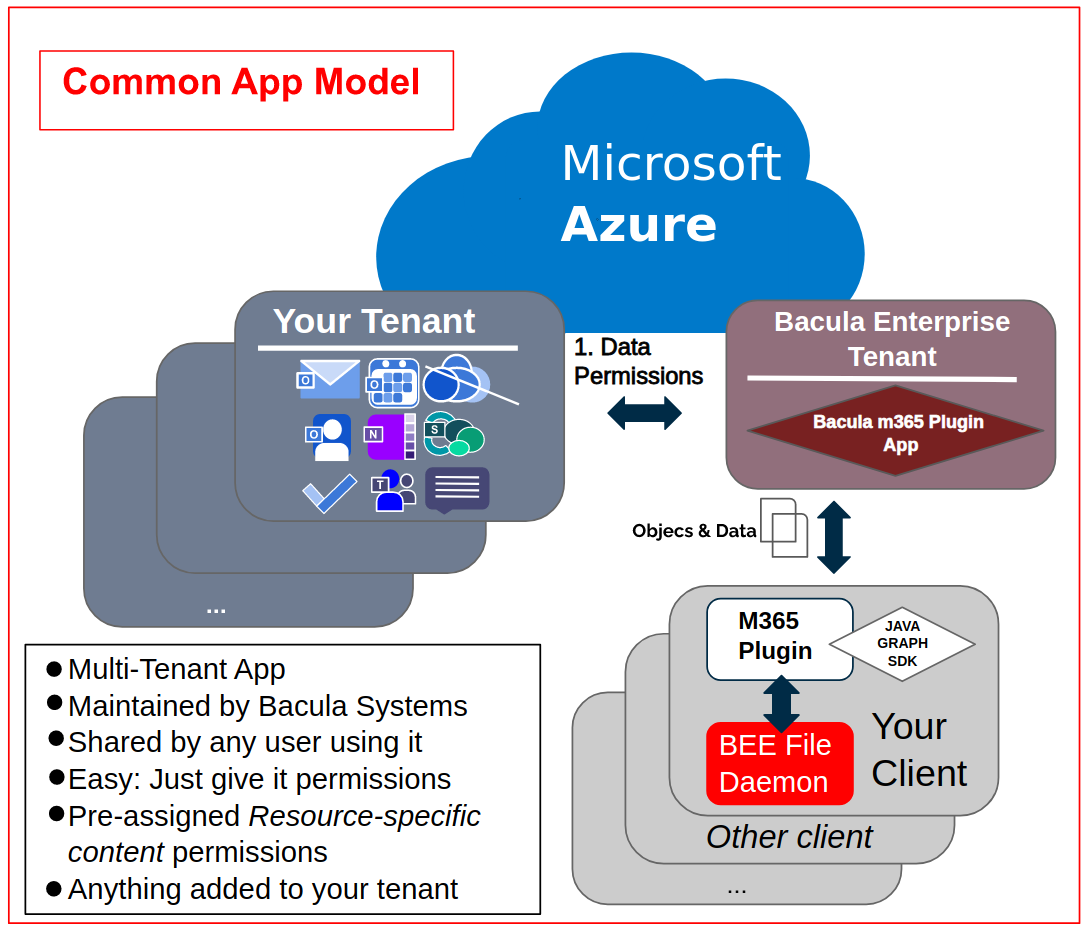
Below we show a schema of how this authorization method works:
A-1. Authorize bacula-m365-plugin
A tenant administrator must run the following query in a web browser, replacing {tenantId} with the value obtained in the first step:
https://login.microsoftonline.com/{tenantId}/adminconsent?client_id=14a0b71a-d9ca-496c-b4c0-76a3cbb5dc33&state=12345&redirect_uri=https://www.baculasystems.com/m365-plugin-auth/common
You can get the exact same URL from the plugin command line itself, once you have installed it in a client named {your_client_name} using the following special Query command.
*.query plugin="m365:" client={your_client_name} parameter=register:{tenantId}
Here is an execution example where the instructions are displayed and you need to open the provided URI:
*.query plugin="m365:" client=127.0.0.1-fd parameter=register:57uia43-d107-17a2-a2g2-aa53c10tdahc
console=---- M365 PLUGIN REGISTER COMMAND ----
console=-------------------------------------
console=-------------------------------------
info=Open the following URI in a browser with your tenant admin credentials
console=-------------------------------------
console=-------------------------------------
uri=https://login.microsoftonline.com/57uia43-d107-17a2-a2g2-aa53c10tdahc/adminconsent?client_id=14a0b71a-d9ca-496c-b4c0-76a3cbb5dc33&state=12345&redirect_uri=https://www.baculasystems.com/m365-plugin-auth/common
console=-------------------------------------
console=-------------------------------------
info=Once you have accepted the provided permissions to the bacula-m365-plugin app..
info=You can get your ObjectId using the command below
console=-------------------------------------
console=-------------------------------------
command=.query plugin="m365: tenant=57uia43-d107-17a2-a2g2-aa53c10tdahc" client={your_client_name} parameter=objectid
console=-------------------------------------
When opening the URI, Microsoft 365 will ask for credentials. You need to authenticate as a tenant admin:
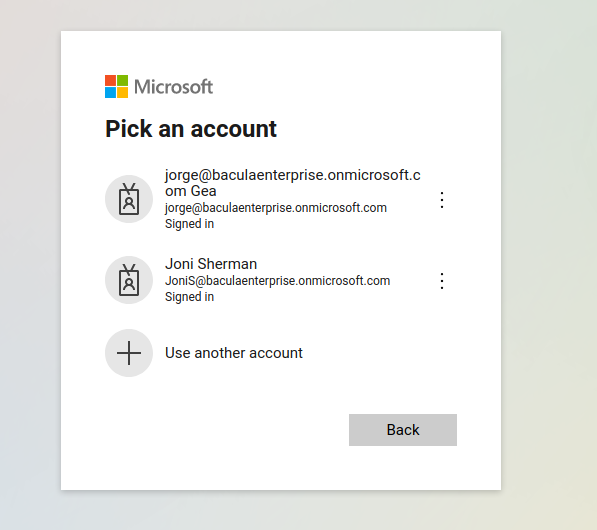
…and once they are correctly provided, the app will ask for all the required permissions to backup and restore all of the supported elements:
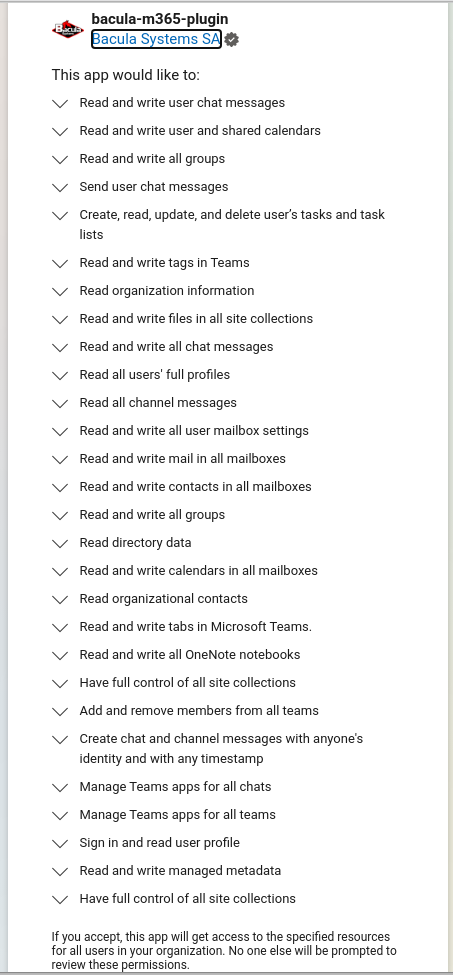
The application needs all of the listed permissions to be able to work. If any of them is missing, backup or restore operationms will fail.
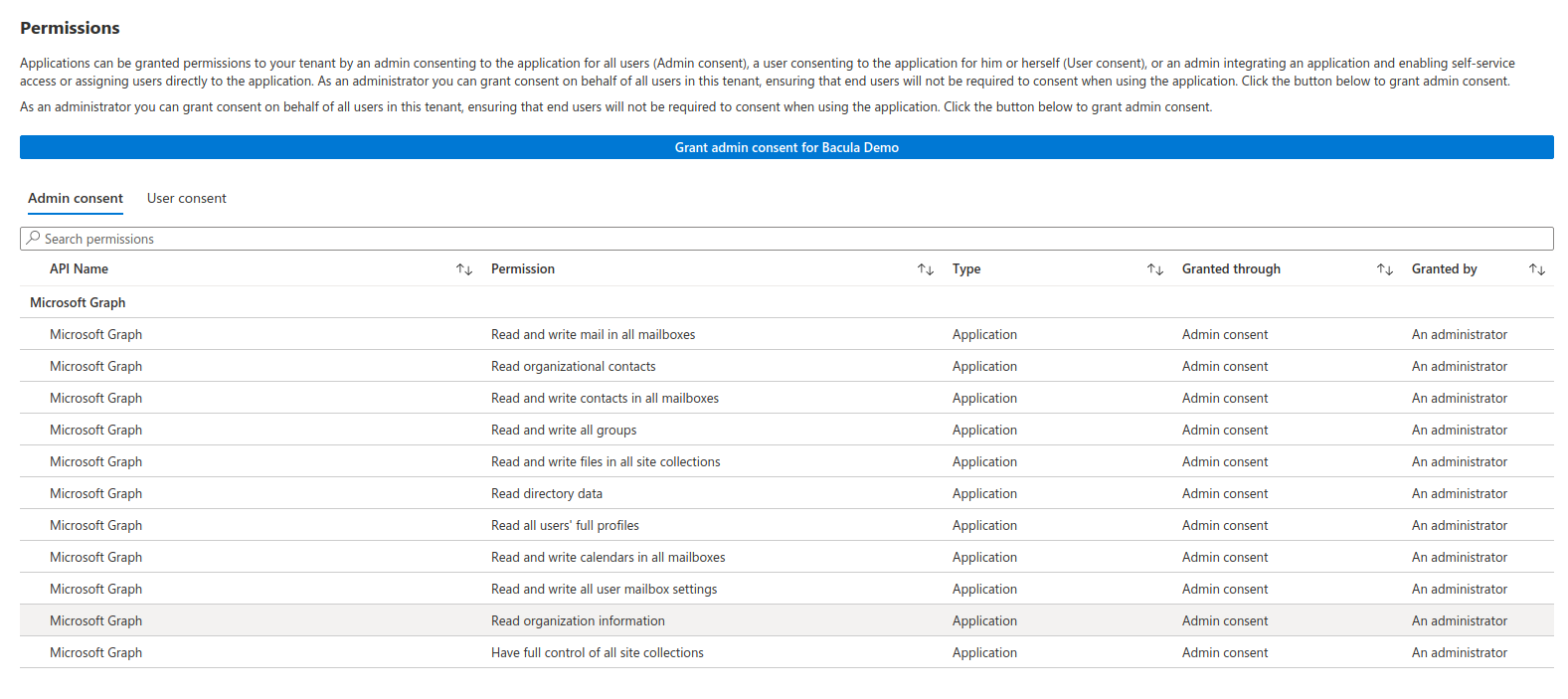
The image and list shown here are illustrative and some additional permissions may be needed as the plugin evolves. However, we provide also here a text list of current permissions needed:
Graph
Read and write user chat messages → Backup/Restore of Team Channels and Chats
Read and write user and shared calendars → Backup/Restore of group Calendars
Read and write all groups → Creation of Teams
Send user chat messages → Restore of Chats
Create, read, update and delete user’s tasks and task lists → Backup/Restore of Tasks
Read and write tags in Teams → For future support of Team tags
Read organization information → Find tenant name
Read and write files in all sites collections → Backup/Restore OneDrive and Sharepoint
Read and write all chat messages → Backup/Restore of Team Channels
Read all users full profiles → Find users to Backup/Restore
Read all channel messages → Backup of Team Channels
Read and write all user mailbox settings → Outlook categories and more future mailbox information
Read and write contacts in all mailboxes → Backup/Restore contacts
Read directory data → Security checks of objectid, list groups, etc
Read and write calendars in all mailboxes → Backup/Restore User Calendars
Read organizational contacts → Backup organizational contacts
Read and write tabs in Microsoft Teams → Backup of Microsoft Teams tabs
Read and write all OneNote notebooks → Backup/Restore OneNote service*
Have full control of all site collections → Backup/Restore Sharepoint
Add and remove members from all Teams → Backup/Restore of Microsoft Teams members
Create chat and channel messages with anyone’s identity and with any timestamp
Manage Teams apps for all chats → Backup of Microsoft Teams apps
Manage Teams apps for all teams → Backup of Chats apps
Read and write the names, descriptions, and settings of all channels of all Teams → Backup of Microsoft Teams Channels
Add and remove members from all channels → Backup of Microsoft Teams Channels
Read and write managed metadata → Security checks of objectid, list groups, etc
Sign in and read user profile → Ability to connect to the tenant
etc.
Sharepoint Online
Full management of all site collections → Backup/Restore Sharepoint (PnP)
Full management of Term Store → Backup/Restore Sharepoint (PnP)
Once it is confirmed, the browser will use the ‘redirect_uri’, which is a page on baculasystems.com that will confirm the result of the registration process.
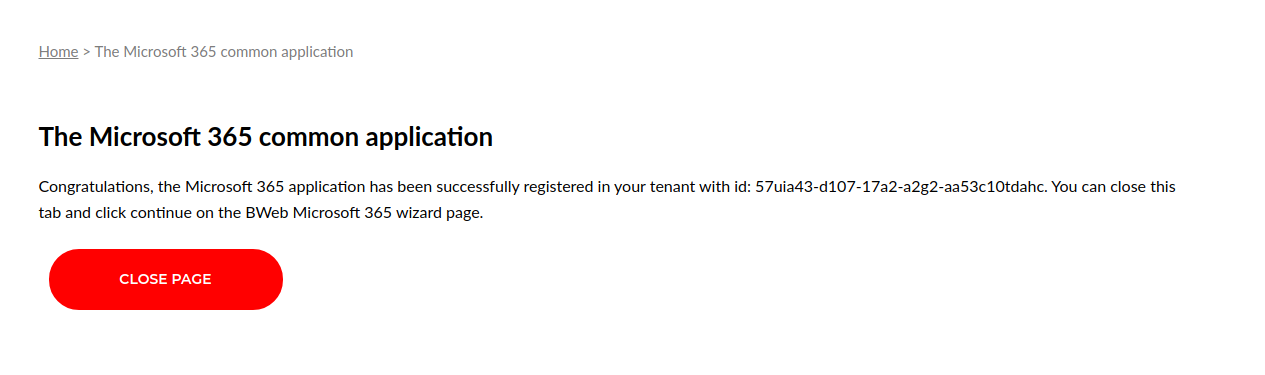
The generated URI contains the parameter admin_consent=True if the action was successful, and you will see a confirmation message in that case. Otherwise, the operation may have not been successful for some reason and you will see an error message.
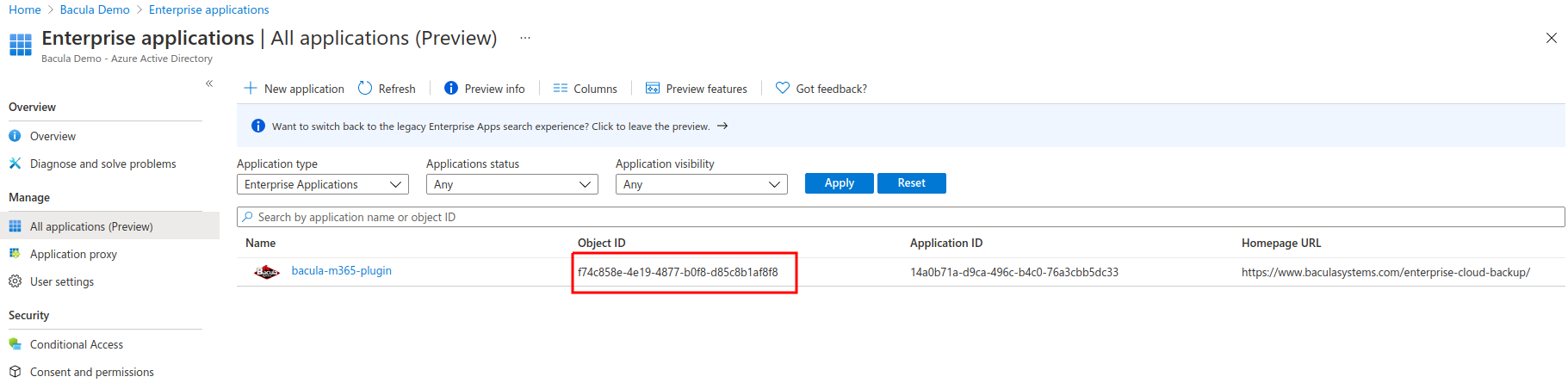
Once that action is done, the tenant where our app now has permissions will show the plugin in the Enterprise Apps section:
Clicking on the app, the tenant admin can always see the permissions assigned:
A-2. Grab Object ID
The plugin needs a final parameter that is unique to each tenant and the plugin app. This is ObjectID, and may be obtained from the Overview app page, once step 2 has been completed:
The plugin can also obtain it from the command line using another special Query command. You can see that this exact command is also suggested in the command that shows the register URL:
*.query plugin="m365: tenant=57uia43-d107-17a2-a2g2-aa53c10tdahc" client={your_client_name} parameter=objectid
Here is an execution example:
*.query plugin="m365: tenant=57uia43-d107-17a2-a2g2-aa53c10tdahc" client=127.0.0.1-fd parameter=objectid
console=---- M365 PLUGIN OBJECTID COMMAND ----
console=-------------------------------------
objectid=56ddf1h9-eb5d-42nf-bac7-7b019fd284g5
console=-------------------------------------
See also
Next articles:
Go back to: Authorization.