Authorization
EnterpriseBacula Enterprise Only
This solution is only available for Bacula Enterprise. For subscription inquiries, please reach out to sales@baculasystems.com.
The first step in order to use the Bacula Enterprise Microsoft 365 Plugin is to authorize it to handle data of the target tenant to backup.
There are two possible strategies in order to allow the communication between the Bacula Enterprise Plugin and your tenant:
- Method A (DEPRECATED): Common app model
Register the pre-existing Bacula Systems bacula-m365-plugin Azure AD app into your tenant.
The communication will happen through this multi-tenant application.
Application Id and associated secrets are internal to the plugin.
Microsoft Graph limits associated to an application are common for everyone using this application (multi-customer).
For future new permissions you just need to click on ‘Grant permissions’ from Azure AD enterprise apps section
- Method B (RECOMMENDED): Standalone app model
Register the pre-existing Bacula Systems bacula-m365-registratror Azure AD app into your tenant. Then add a standalone application in your tenant.
Then add your own standalone application in your tenant calling the appropriate automatic command from bconsole
A bacula-m365-plugin-standalone Azure AD application will be created specifically for your tenant. The communication will happen through it.
Application Id and associated secrets need to be correctly set and they can be managed by you.
Microsoft Graph limits associated to an application are specific to your standalone application
For future new permissions you need to re-run the bconsole add-app command (which uses bacula-m365-registrator) or do it yourself manually
To walk through the process described in Method B with the help of a video, click on the image below:

Note
Authentication Method B is only available from Bacula Enterprise 12.8.2
The first method is simpler and faster to setup, however it is only advised for testing purposes. The second method needs a few extra variables to manage and it is recommended for medium or large environments. It is more secure and it can offer better performance.
Backup and restore operations will be using in general the ‘Application permissions’ model, where the application has enough privileges to perform all the operations without impersonating any user. However, some specific modules need to employ ‘Delegated permissions’. To know more about them, please go to Delegated Permissions
Note
Starting from Bacula Enterprise version 14.0 you can also perform these authorization tasks directly using BWeb, to see more details, please go to section BWeb Management Console
The sections below will show how to use both methods. For any of them, the first step is to find your Tenant ID:
How to find the Tenant ID
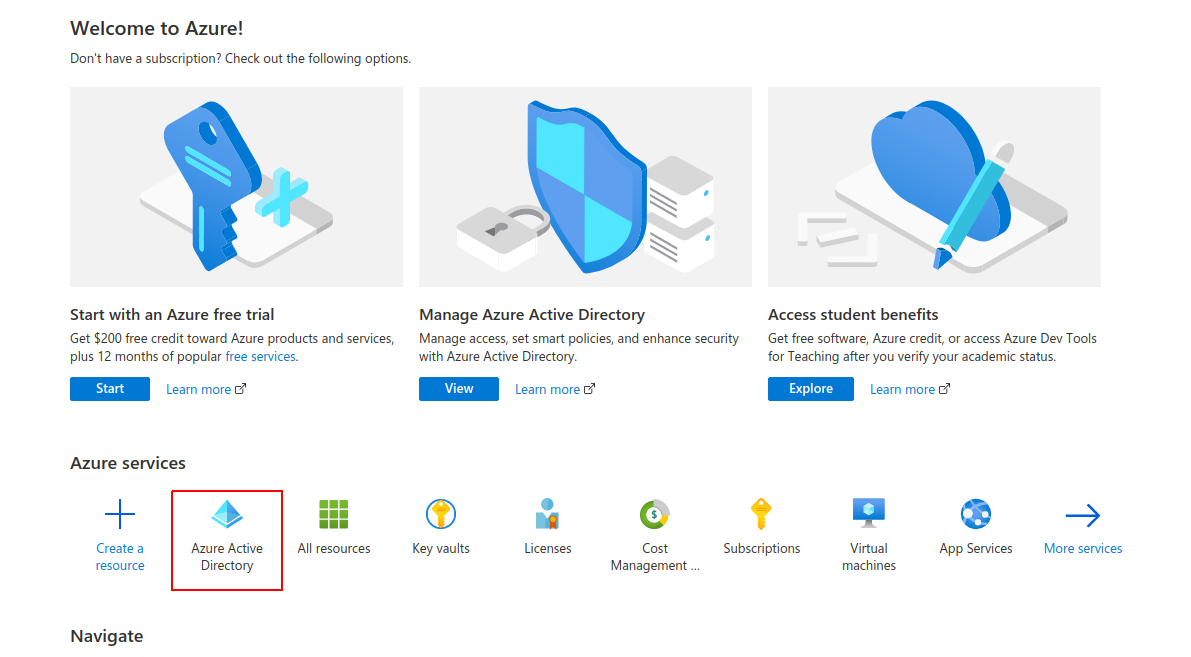
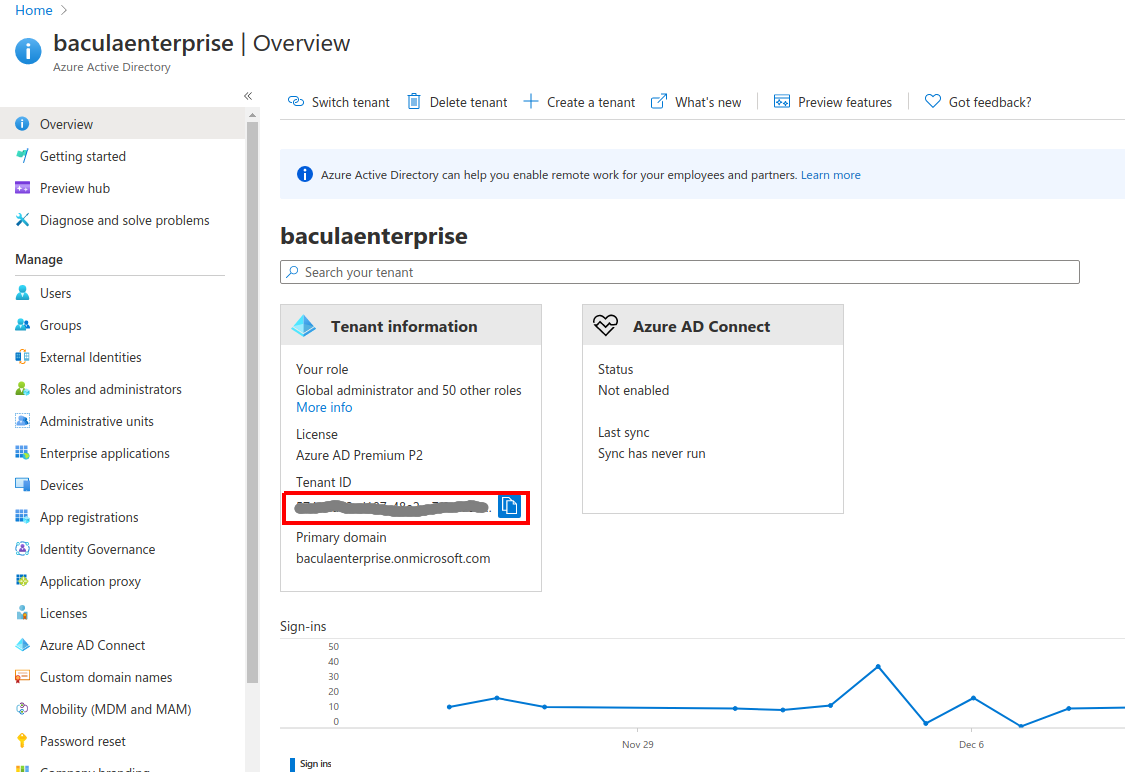
In order to find the Tenant ID you only need to login to the Azure portal (portal.azure.com) and take a look at the ‘Overview’ page of the service Azure Active Directory. Just click in the service as the below image shows:
Once there, you will find the Tenant ID in the box highlighted in the below image:
Read more:
Go back to: Configuration.